DX Spotter Family Manual

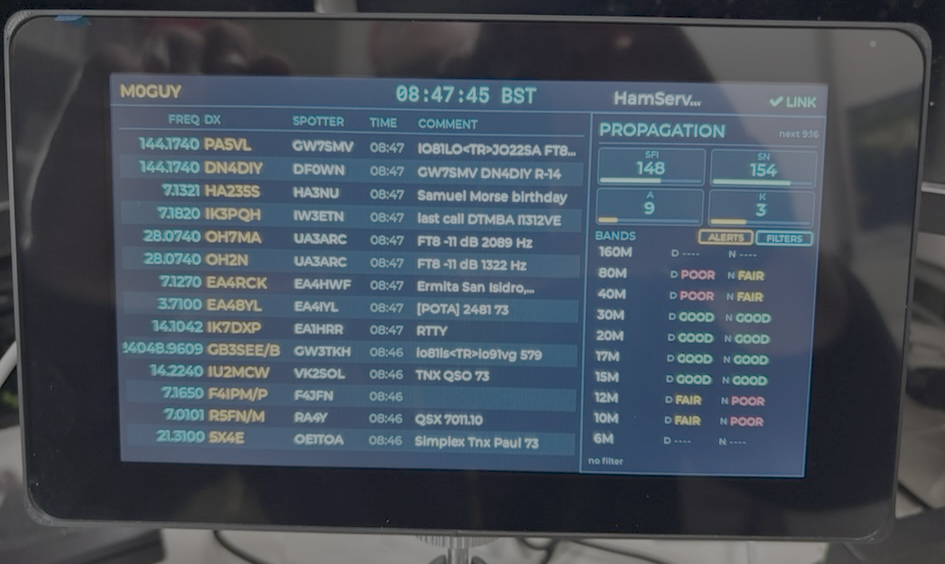
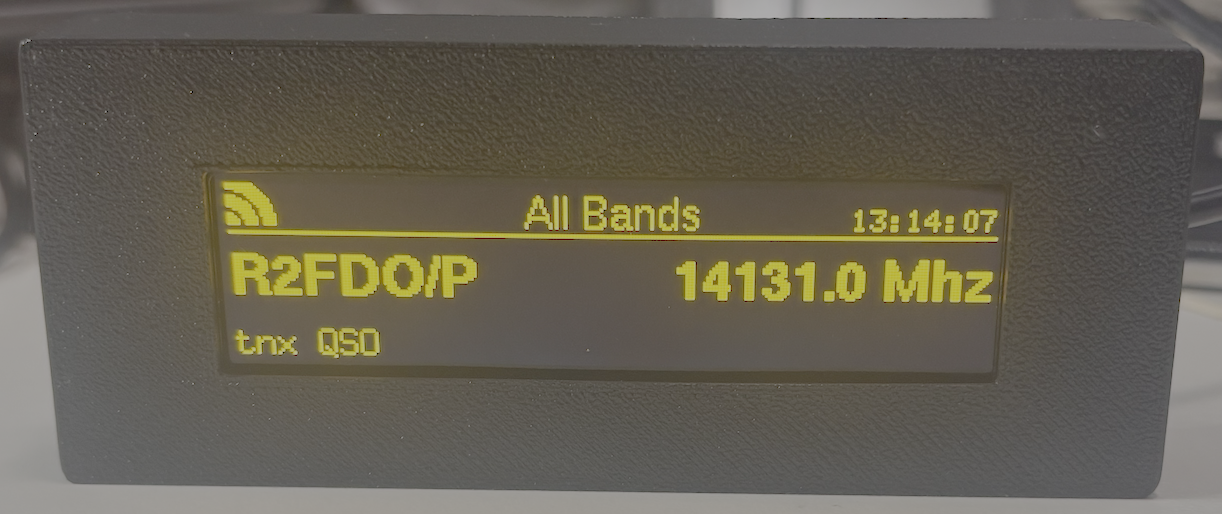
The DX Spotter Display Unit
Welcome to the DX Spotter family user manual. This guide covers two products:
DX Spotter (Classic) — a compact, WiFi-enabled device with a high-contrast yellow OLED display, designed to monitor DX cluster spots from your shack desk or in portable operations.
DXSpotter Pro — the flagship model, with a 7-inch capacitive-touch RGB LCD, on-device touch UI, live HamQSL propagation panel, and configurable DX alerts.
Both products connect to standard DX cluster networks via WiFi to display real-time amateur radio spot information. Pick the product you have from the navigation on the left, or read both — much of the configuration philosophy is shared.
We have partnered with hamserve, https://dxc.hamserve.uk as the default DX Cluster to connect. Hamserve DX cluster is hosted in a data center with excellent bandwidth and uptime statistics, making it a great choice for receiving your DX Spots.
DX Spotter (Classic)
DXSpotter Pro
- Introduction
- Getting Started
- Configuration
- Two Ways to Configure
- Accessing Configuration After Initial Setup
- Device Information
- WiFi Configuration
- DX Cluster Configuration
- Filter Configuration
- Alert Configuration
- Display and Behaviour Settings
- QRZ.com Callsign Lookup
- Factory Reset
- Configuration Examples
- Saving Configuration Changes
- What's Next?
- Operation
- Callsign (Top Left)
- Clock (Top Centre)
- Cluster Name (Top Right)
- LINK Indicator (Far Right)
- Row Layout
- Tapping a Spot
- Spot Highlighting
- Spot Sorting and Eviction
- Solar Stats Block (Top of Panel)
- MODE and ALERTS Buttons
- Per-Band Conditions
- Choosing Which Bands Are Shown
- Filter Footer
- Network Details Modal (LINK)
- WiFi Management Modal
- Cluster Picker Modal
- Filters Modal (MODE)
- Spot Detail Modal
- Callsign Edit Modal
- Alerts Modal
- Alert Popup Modal
- Cluster Error Modal
- Power-On
- Steady State
- Auto-Recovery
- Optimal Viewing Distance
- Power
- Placement
- Filtering Strategy
- Alerts Strategy
- Scenario 1: Casual Band Watch
- Scenario 2: Contesting on 20M
- Scenario 3: DXpedition Hunting
- Scenario 4: Field Day / Portable
- Troubleshooting
- Updating Units on Firmware 1.0.1
- Advanced Features
- Technical Specifications
- Compliance (DXSpotter Pro)
- Changelog
Quick Links
About This Manual
This manual covers, for both products:
Initial setup and WiFi configuration
DX cluster connection settings
Band filtering and display customisation
Troubleshooting common issues
Advanced features and OTA updates
DXSpotter Pro-only sections additionally cover:
On-screen touch UI and first-run wizard
Live HamQSL propagation panel (SFI/SN/A/K + per-band conditions)
DX alert callsign/prefix matching with auto-popup
AP-mode QR setup screen
"Device Not Registered" lockout screen
Regulatory and Safety Information
Per Radio Equipment Directive 2014/53/EU, Article 10(9)
Hereby, TopBytes Ltd declares that the radio equipment types DX Spotter (Model: DXSPOT-02) and DXSpotter Pro (Model: DXSPOT-PRO-01) are in compliance with Directive 2014/53/EU.
The full text of the EU declaration of conformity for the classic DX Spotter is available at Compliance, and for DXSpotter Pro at Compliance (DXSpotter Pro).
Support
For additional support, please visit:
Website: https://www.topbytes.net
DX Spotter Portal: https://dxspotter.topbytes.net
Support email: support@topbytes.net